Any Filter lets you search, explore, sort, and export many more photo fields (criteria) than are built-in to Lightroom, including IPTC Extension, GPS location, library properties, develop settings, and plugin fields (895 fields in all). Additional operators include exact text match, matching regular expressions, testing empty fields, distinguishing explicit from implicit ancestor keywords, treating text fields as numeric, and including other saved Any Filters and smart collections.
Define search queries similar to smart collections. Example Any Filters include:
- Has Virtual Copies
- Top of stack, without keywords
- Cropped megapixels less than 1.5 MP
- Aspect ratio (width / height) greater than 3
- Captured Christmas day (any year)
- Keywords include ancestor keywords
- Exact match of explicit keywords (not parents)
- Exactly one person in the keywords
- Exact text match of caption
- Captions starting with number greater than 500
- Within 10 kilometers of Stanford University (GPS)
- Locations Shown in Palo Alto, CA (IPTC Extension)
- Subject Distance less than 1 meter
- Metering Mode is multi spot
- Spot Removal applied
- Develop exposure greater than 1
- Raw camera profile not Camera Standard

Explore field values using a column browser similar to the Library Filter bar’s metadata browser. But Any Filter’s column browser can display any field, including those with thousands of unique values:

Sort photos by one or more fields and save the sorted list in a collection or export the list with the selected fields to a text file:

Any Filter also provides additional commands:
- By Date: filters by dates and date ranges without fussing with the Library Filter bar;
- Fix Burst Times: sets the fractional seconds of bursts of photos so they sort properly in Library.
Try it for free for 30 days. Buy a license at a price you name.
Download and Install
Any Filter requires Lightroom 5 or later, Lightroom CC 2015, or Lightroom Classic. (The newer cloud-focused Lightroom doesn’t support plugins.)
- Download anyfilter.1.79.zip. (What’s changed in this version)
- If you’re upgrading from a previous version of Any Filter, exit Lightroom, delete the existing anyfilter.lrplugin folder, and replace it with the new one extracted from the downloaded .zip. Restart Lightroom and you’re done.
- If this is a new installation, extract the folder anyfilter.lrplugin from the downloaded .zip and move it to a location of your choice.
- In Lightroom, do File > Plug-in Manager.
- Click Add, browse and select the anyfilter.lrplugin folder, and click Select Folder (Windows) or Add Plug-in (Mac OS).
The free trial is for 30 days—after that, you’ll need to buy a license.
Buy a License
- Buy a license for $14.95*:
The license includes unlimited upgrades. Make sure you’re satisfied with the free trial before buying. - Copy the license key from the confirmation page or confirmation email.
- Do Library > Plugin-Extras > Any Filter > Search.
- Click Buy.
- Paste the key into the License key box and click OK.
*Why the 2025 increase in price? Any Filter’s price had remained unchanged since I first released it in 2010, yet it’s required much more effort to maintain and improve than any of my other plugins.
Using Any Filter > Search
Creating an Any Filter is very similar to creating a smart collection. If you’re not familiar with smart collections, I recommend you read the Adobe Help before trying to use Any Filter. Any Filter includes all the criteria of smart collections and adds many more.
Any Filter commands are available under Library > Plug-in Extras > Any Filter menu as well as File > Plug-in Extras > Any Filter. Their location under File allows them to be used in any module, while the Library menu is retained for users accustomed to earlier versions of Any Filter.
Applying a Saved Any Filter
When you apply a saved Any Filter, all the images in the currently selected folder or collection are filtered to show just the ones matching the Any Filter. Unlike smart collections, the results aren’t automatically updated as you change images—reapply the filter to see new results.
To apply a saved Any Filter:
- Do Library > Plug-in Extras > Any Filter > Search (keyboard shortcut ALT+L U S on Windows).
- Click Any Filters in the upper left.
- Select one of the saved Any Filters on the right.
- To search only visible photos (showing in Grid mode or in the filmstrip), rather than the entire catalog, check Visible photos only.
- Click Apply, or double-click the selected Any Filter.
- The Library Filter bar will be updated to filter all the images in your catalog that match the criteria of the selected Any Filter.
Each time you apply an Any Filter, the resulting photos are saved in a new collection under the collection set Any Filter Results. Any Filter retains the most recent 8 results. If you want to retain one of the collections permanently, rename it or move it to another collection set. You can disable saving of results by unchecking the option Save results as a collection.
If you don’t want the currently selected folder or collection filtered to show the results, then uncheck Show results using a Library filter. View the results via the collection set Any Filter Results.
To enable reasonably fast searching, Any Filter uses Lightroom’s built-in search facilities wherever possible. But Lightroom has numerous obscure bugs in its search. If you suspect you’re encountering such a bug, use the Avoid Lightroom bugs option. This will avoid the bugs, at the expense of much slower searching.
Applying a Collection or Smart Collection
As a convenience, you can filter using an existing collection or smart collection rather than a saved Any Filter. This lets you view the contents of a collection with all the contained stacks collapsed (Lightroom doesn’t show stacking for collections). It also lets you snapshot the contents of a smart collection, which is handy when you don’t want the set of images matched by the smart collection to automatically update as you modify them. And it lets you intersect the results of a smart collection or collection with a folder, functionality that was removed from Lightroom 4.
- Do Library > Plug-in Extras > Any Filter > Search (keyboard shortcut ALT+L U S on Windows).
- Click Collections in the upper left.
- Select one of the collections or smart collections on the right.
- Click Apply, or double-click the selected collection.
- The Library Filter bar will be updated to filter just the images in the collection.
Creating and Editing an Any Filter
Creating and editing an Any Filter is similar to creating a smart collection:
- Do Library > Plug-in Extras > Any Filter > Search (keyboard shortcut ALT+L U S on Windows).
- Click an existing Any Filter or click New.
- Enter a name for the Any Filter.
- The current criteria are displayed, one per line. To edit a criterion, click on it and then use the drop-downs and edit fields to change the criterion:
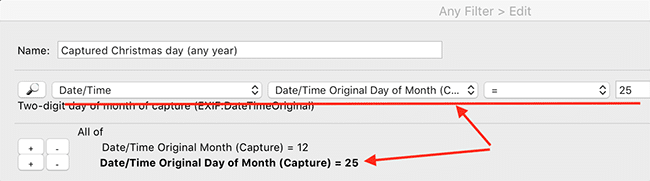
Click the magnifying glass 🔎 to search for a field rather than use the drop-downs. - To add a new criterion after the currently selected one, click the “+” button; to delete a criterion, click the “-” button.

Searching Plug-in Metadata
Any Filter can search custom metadata fields defined by plug-ins. To tell Any Filter to search a plug-in’s fields:
- Click Plug-in Metadata.
- Click Add Plug-in.
- Browse to folder containing the plug-in and click OK.
When editing an Any Filter, the plug-in will now be listed in the left-most drop-down menu along with the other categories of criteria (Library, Date/Time, Description, etc.).
Plug-ins that store numbers in their metadata fields store the numbers as texts, but you can use Any Filter’s numeric-text operators (< number, = number, etc.) to treat those fields as numeric.
If Add Plug-in gives an error, the plug-in is likely incompatible with Any Filter (due to deficiencies in Lightroom’s plugin support). In that case, use the Scan Catalog button to scan all the photos in the catalog and extract the plug-in metadata fields it finds. These fields will appear as criteria in the Plug-in Fields category with names like com.johnrellis.anyvision.text. Contact the plug-in’s developer for questions about the meanings of the plug-in’s fields. Use the Filter command to see the range of values for a particular plug-in field.
Any Filter Criteria
Any Filter provides all of the searchable photo fields (criteria) and operators of smart collections and many more, including IPTC Extension, GPS location, library properties, develop settings, and plugin fields. The complete list is available here. Many of these criteria have obscure names that are used internally by Lightroom’s code and often don’t match the naming in the user interface—there are so many that it’s impractical for me to give them more perspicuous names. Use the magnifying glasses 🔎 in the Search and Filter commands to search for criteria.
Additional operators include exact text match, matching regular expressions, testing empty fields, distinguishing explicit from implicit ancestor keywords, treating text fields as numeric, and including other saved Any Filters and smart collections.
Text Operators
Any Filter provides the following operators for comparing text fields. All comparisons ignore case; for example, JOHN and john are treated as identical. If a field is missing from a photo, it is treated as present but empty.
= value (!=)
Matches if the field is identical to value.
contains value (doesn't contain)
Matches if at least one space- or comma-separate sequence in value is contained somewhere in the field. For example, contains lo to matches bright colors and old photos.
contains all value
Matches if every space- and comma-separated sequence in value is contained somewhere in the field. For example, contains all lo to matches color photos but not old photos.
contains words value
Matches if every space- and comma-separated sequence in value matches a “word” in the field, where a word is a sequence consisting only of letters, digits, and the characters – _ ‘ /. For example, contains words joe bob matches bob and joe ellis but not joey and bob.
starts with value
Matches if the field starts with the characters in value. For example, starts with color photo matches color photos 1960 but not old color photos.
ends with value
Matches if the field ends with the characters of value. For example, ends with lor photos matches faded color photos but not color photos 1960.
matches line value
Matches if the field is an exact match with at least one line in value. Spaces and tabs are trimmed from the beginning and end of the field and each line. Useful for searching for photos matching a long list of file names (paste the list into the value field).
is empty (isn't empty)
Matches if the field is empty or missing from the photo.
< value (<=, >=, >)
Matches if the field comes before value in lexicographic ordering, comparing every character of the field and value. <= matches if the field comes before or is the same as value.
matches pattern (doesn't match)
Matches if pattern matches the field using the pattern matching documented here. For example, matches day [0-9]+ matches day 5 of the race and yesterday 1979. Note that matches is case sensitive, unlike all the other operators, which ignore case. The Lua string escapes are recognized in the pattern, including \n (newline) and \ddd (specifying a byte value with a decimal number). Due to Lightroom limitations, the patterns match against the individual bytes of the UTF-8 encoding rather than the Unicode characters. Thus, a pattern such as 相* doesn’t match zero or more occurrences of the character 相—rather, it matches the first two bytes of the UTF-8 encoding of that character, \231 \155, and then zero more occurrences of the third byte, \184.
< number value (<= number, = number, != number, >= number, > number)
These operators treat the field as a number and compare it numerically with value. Any characters following a leading number in the field are ignored, and the criterion never matches if the field doesn’t begin with a number. For example, < number 50 matches 49GKX and 3 dogs but not 50GKX or dogs 49.
Fields with Multiple Values
Any Filter provides more flexibility with fields like Collections and Keywords that contain multiple values. As with smart collections, you can define a criterion Keywords = John that matches a photo if at least one of its keywords is equal to John. But you can also define that criterion more explicitly as:
Keywords some items
    Keyword = John
which is true if at least one of the keywords is equal to John. Similarly, the criterion Keywords != John matches if none of the keywords matches John; this is equivalent to:
Keywords no items
    Keyword = John
Using this explicit testing of individual items, you can write more complicated criteria:
Keywords all items
    Some of
        Keyword = John
        Keyword = Peter
This matches a photo if all of its keywords are either John or Peter. See the predefined Any Filter Exactly two people in the keywords for how to write a more complicated filter that matches photos that contain exactly two person keywords (subkeywords of People) and no others.
Some of the IPTC Extension fields are actually sequences of multiple subfields. For example, the Locations Shown field can contain one or more locations, each of which has a City, Country Code, Country, Province/State, Sublocation, and World Region. To match photos showing the location Palo Alto, CA:
Locations Shown some items
    All of
        City = Palo Alto
        State/Province = CA
For any field with multiple values, you can test the number of values using the number of operators. For example, to match photos with no more than 2 explicit keywords assigned:
Explicit Keywords number of <= 2
     Include all items
To match photos with exactly 2 explicit keywords that are subkeywords of People:
Explicit Keywords number of = 2
     Keyword subkeyword of People
To match photos with at least one Person keyword (a keyword added by face recognition):
Explicit Keywords number of >= 1
     Person is true
To match photos with no keywords that will be exported:
Explicit Keywords number of = 0
     Include on Export is true
Explicit Keywords
Lightroom’s smart collections and filtering define the Keywords criterion to mean any keywords that have been explicitly applied to the photo, the corresponding ancestor keywords, and any synonyms of those keywords. For example, if the keyword People > Family > John has been applied to a photo, then the smart collection Keywords contains People will match that photo.
With Any Filter’s Explicit Keywords criterion, you can match the explicitly applied keywords only, ignoring synonyms and the implicit ancestor keywords. You can use the subkeyword of operator to test if an explicit keyword is a subkeyword or identical to another keyword. For example, the criterion Explicit Keywords subkeyword of People is the same as Keywords = People. See the predefined Any Filter Exactly one person in the keywords for an example.
The criterion Explicit Keywords contains ancestors has a unique purpose, to identify a photo that has both a keyword and its ancestor explicitly applied, for example, People and People > Family > John. This can be handy when you’re adding more levels of detail to your keyword hierarchy and want to find photos where you’ve accidentally applied both a keyword and its ancestor.
Crop Ratios
The criteria Standard Crop Ratio and Uncropped Standard Crop Ratio give the built-in crop ratio nearest to the photo’s aspect ratio (1 x 1, 5 x 4, 11 x 8.5, 4 x 3, 7 x 5, 3 x 2, 16 x 10, 16 x 9, or Very Long).
Use Numeric Aspect Ratio (the photo’s width / height) to search for precise ratios that may be slightly different from the standard crop ratios. Beware that since photos have an integral number of pixels in each dimension, their precise ratio may be slightly different than the standard crop ratio. For example, a 10 x 8 that’s 4543 pixels wide will have a height of 3634 pixels, which has an approximate ratio of 1.25014. So use the in range operator to include ratios that are a little smaller or bigger:
Numeric Aspect Ratio in range 1.249 to 1.251
Comments and Likes
Lightroom retrieves and stores comments and likes made by other users on photos in public synced collections and publish services like Flickr, but it’s near-impossible to find such photos with Lightrooms built-in features, so Any Filter provides criteria for finding them.
Date/Time Last Comment or Like is when someone last commented or liked a photo. To find comments or likes made in the last three days, use the built-in filter Comments or likes in the last 3 days, defined as:
Date/Time Last Comment or Like is in the last 3 days
Comment Texts searches the texts of the comments. To find comments containing “lighten shadows”:
Comment Texts contains words lighten shadows
Comment Authors searches the names of the comments’ authors. Number of Comments and Number of Likes searches the number of comments and likes on a photo. Comment Details lets you search all the specifics, including the collection in which the comment was made and the publish service (e.g. Flickr).
To view the comments and likes of a photo and possibly reply to them using the Comments panel in the right column of Library, you need to select the published or synced collections in which the comments were made, which can be tedious if the photo appears in many collections. Select a photo with comments and do File > Plug-in Extras > Next Collection with Comments, which selects the next collection containing a comment or like on the photo. Repeatedly invoking that command cycles through all such collections for a photo.
ExifTool Field
The ExifTool Field criterion (in the Description category) lets you search virtually any metadata field stored in master photos, regardless of whether that field is in the Lightroom catalog. Any Filter uses the well-regarded, authoritative, but hard-to-learn ExifTool utility to read fields from the photos.
You can enter any field name recognized by ExifTool—see its documentation for the complete list. Click the magnifying glass 🔎 to quickly search for a field.
The field name may include an optional ExifTool group prefix (required only when there are multiple fields with the same name). For example, ImageDescription, EXIF:ImageDescription, and IFD0:ImageDescription all refer to the same field.
Any Filter treats every ExifTool field as a string. If the field contains numeric values, use the number comparison operators. For example:
ExifTool Field > number 3 field: Rating
will search the XMP:Rating field for values numerically greater than 3.
ExifTool Field searches the metadata stored in the master photo files or .xmp sidecars on disk, not in the Lightroom catalog. Fields in sidecars take precedence over fields in the raw files themselves.
If you’re searching a field that Lightroom may have modified, you’ll need to ensure that the field in the catalog has been written back to the photo files. Select all the photos and do Metadata > Save Metadata to File, or set the Lightroom option Automatically write changes into XMP in Catalog Settings > Metadata.
Compared to other Any Filter criteria, ExifTool Field is very slow, limited by the speed of the ExifTool utility. ExifTool can process about 50–150 photos per second, depending on the types of photos and the speed of your computer. So to search a catalog with 50,000 photos could take roughly 1000 seconds (17 minutes)!
To speed up the ExifTool Field criterion, Any Filter runs many instances of ExifTool concurrently. By default, if your computer has n virtual processors (threads), Any Filter will run about 1/3 n instances (e.g. 4 instances on 12 virtual processors / 6 cores). You can adjust that number in the Advanced Settings section of File > Plug-in Manager > Any Filter. Use a smaller number if Any Filter searches are making your Lightroom or computer less responsive, a larger number if you want the searches to go faster. But beware that numbers much larger than the default could make your Lightroom or computer difficult to use interactively. On my Macbook Pro with 16 virtual processors and all the photos on a solid-state drive, I’ve found that using 8 ExifTool processes is about twice as fast as 4, while 16 is only about 25% faster than 8.
Lua Code (Advanced)
The Code criterion lets you define custom criteria with Lua scripts (Lightroom and plugins are implemented in the Lua programming language). This requires programming experience and patience.
In the criterian’s code box, enter a boolean Lua expression (not a statement) to be evaluated for each photo. In the fields box, enter the list of photo fields referenced by that expression, separated by commas.
For example, to match photos whose Title is the same as the Caption and non-blank:
fields: Title, Caption code: Title == Caption and Title ~= ""
This example is included with the built-in filters, named Title same as Caption, not blank. For a more advanced example, see the built-in filter Has person keyword but no associated face rectangle, whose script is in anyfilter.lrplugin/Any Filter Includes/person-keywords-no-face-tags.lua. For two more examples, see Capture date this month of any year and Capture date this month and day of any year.
To refer to a field whose name includes spaces and other punctuation, omit the spaces and punctuation, e.g. CollectionSets and DateTimeOriginalCapture. To refer to a metadata field extracted with ExifTool, in the fields box prefix it with an ExifTool group name, e.g. EXIF:ImageDescription and in the code expression refer to it without the colon, e.g. EXIFImageDescription.
The code expression is evaluated in the standard global environment for Lightroom plugins (see Chapter 1 of the Lightroom Classic Programmers Guide). The fields listed in fields are available as global variables in the code expression. In addition, photo contains the Lightroom LrPhoto object for the current photo, catalog contains the current LrCatalog, and Debug is the debugging module from the Lightroom Debugging Toolkit.
You can place your code in a script file and load it with the include function, e.g.
include "myscript.lua"
Use the return statement to return a value from the script. Compared to dofile and require, include is optimized for use in Any Filter.
You can use an absolute or relative file path to the script. For the latter, include looks in the Any Filter Includes subfolder in the Lightroom preferences folder and then in the anyfilter.lrplugin folder. To see the location of the Lightroom preferences folder, in Lightroom do Preferences > Presets > Show All Other Lightroom Presets.
The values bound to the field variables use Any Filter’s internal representations (generally those provided by the Lightroom SDK). Beware that a field missing from the photo is usually represented as nil rather than "". The easiest way to discover these representations is by logging them to the file anyfilter.lrplugin/debug.log, e.g.
Debug.lognpp (photo.path, DateTimeOriginalCapture, Faces)
You can also invoke the debugger via Debug.pause().
Any Filter Speed
Some Any Filters match photos as fast as smart collections, and most will match at least 1500 photos/second, often many times faster. But if they access develop settings, they could match as slow as 250 photos/second, and if they use ExifTool Field, as slow as 50 photos/second. Any Filter is limited by the speed at which Lightroom supplies plug-ins with photos’ metadata.
Wherever possible, Any Filter uses smart collections internally to speed up matching. For example, to implement Keywords = John, Any Filter first executes Keywords contains John using smart collections (which is very fast) and then further filters the resulting photos to those whose keywords exactly match John.
If your Any Filter is matching too slowly, consider adding smart-collection criteria that will help Any Filter quickly narrow down the set of photos. For example, if you know that the desired photos were captured in the last several months, add a Date/Time Original (Capture) criterion.
See ExifTool Field for performance tips on that criterion in particular.
Using Any Filter > Filter
The Filter command provides a column browser similar to the Library Filter bar’s metadata browser:
Each column displays the values of the chosen field, and clicking a value will display only those photos with that value. Shift-click, Cmd-click (Mac) or Ctrl-click (Windows) to select additional values in a column.
Click on + to add a column, – to remove it.
Click the drop-down in the upper-left corner to save the current column settings as a preset or invoke a previously defined preset.
The Filter command filters the photos currently visible in the grid and filmstrip. Lightroom doesn’t always notify the plugin when you change the current source (folder or collection) or the Library Filter bar settings—in that case, click Refresh to recompute the columns.
Filter is often slow, due to Lightroom limitations. Lightroom fetches some fields very quickly, others very slowly. In general, if Filter is too slow, use smart collections and the Library Filter bar to narrow down the set of photos you’re examining before invoking Filter.
If there are more than 100 unique values to display in a column, they will be grouped into 100 buckets, sorted numerically or alphabetically. You can change the maximum number of buckets in Settings (⚙). Here’s an example:

1. Filter is examining 1091 photos, with 1042 unique values for file size.
2. Since there are more than 100 unique values, Filter groups them into 100 buckets.
3. The second bucket contains 11 photos, with file sizes greater than 38,988 bytes and less than or equal to 126,063 bytes.
You can change the column height and width in Settings (⚙).
Using Any Filter > Sort
The Sort command sorts the selected photos by one or more fields and optionally exports the photos and fields to a text file:
You can sort a field in ascending or descending order, and you can force a field to be sorted alphabetically or numerically. (In versions of Lightroom prior to Lightroom 7.2, that option has no effect due to a Lightroom bug.)
If you select the option Save sorted list to collection, the sorted list will be saved in the collection Any Filter Sorted. Be sure to do View > Sort > Custom Order to view the collection in the chosen order.
If you select the option Save sorted list and fields to CSV file, the list of photos and the chosen fields will be saved in the designated text file in comma-separated values format. You can open the file in Excel, Google Sheets, or any other application that understands CSV format.
Sort adds a URL column to the file containing lightroom: URLs. In Excel, use the HYPERLINK function with this column to make clickable links that will take you directly to each photo in Lightroom.
Using Any Filter > By Date
The By Date command lets you quickly filter by dates and date ranges by typing the dates, rather than fussing with the Library Filter bar. When prompted for a date, you can enter the full year/month/day, year/month, or just a year:

For example, to find all photos in 2012, select Date and enter 2012. To find all photos from 1993 to 1999, select Date Range and enter the years 1993 and 1999.
The option Clear current filter clears all previous filter conditions in the Library Filter bar; deselecting that option causes a Date column to be added to the current filter without removing the existing columns.
Using Any Filter > Fix Burst Times
[Fix Burst Times is no longer needed in Lightroom 11. At some point in the last few years, Adobe silently fixed Lightroom’s sorting by capture time. Files that have the same exact time are sorted by file name.]
Many cameras don’t set the capture time’s fractional seconds of bursts when shooting in drive mode, and the bursts often appear out of order in Library. The Fix Burst Times command finds bursts of photos having the same capture time and sets the photos’ fractional seconds to be increasing in the same order as their filenames, e.g. to .0001, .0002, .0003, etc. This properly orders the bursts in Library when sorting by capture time.

Clicking Save Bursts saves each burst of photos as a collection inside the collection set Any Filter Bursts, letting you preview the bursts before setting their fractional seconds.
We wouldn’t need Fix Burst Times if Lightroom simply sorted by filename when photos’ capture times were equal—please add your me-too vote to this bug report.
Keyboard Shortcuts
Use Any Menu to invoke any plugin menu item with just a few keystrokes and assign single-letter quick keys to the most-used menu items. Alternatively:
Windows: You can use the standard menu keystrokes to invoke Any Filter commands. For example, ALT+L opens the Library menu, U opens the Plug-in Extras submenu, and S invokes the Any Filter Search command.
To reassign a different final keystroke to an Any Filter menu item, edit the file Info.lua in the plugin folder. Move the & in front of the desired letter in the menu command’s name, changing the name itself if necessary.
To assign a single keystroke as the shortcut, download and install the free, widely used AutoHotkey.
Mac OS: In System Settings > Keyboard > Keyboard Shortcuts > App Shortcuts, click + to add a new shortcut. In the Application menu, tediously scroll to the bottom and select Other… Navigate to Applications > Adobe Lightroom Classic and select Adobe Lightroom Classic.app. In Menu title type three spaces followed by the name of the menu command, e.g. “Search” (case matters and don’t enter the quotes). In Keyboard shortcut type the desired key or key combination.
Support
Please send problems, bugs, suggestions, and feedback to: ellis-lightroom@johnrellis.com.
I’ll gladly provide free licenses in exchange for reports of new, reproducible bugs.
If Any Filter crashes with an error or produces surprising results, please check the Debug option and re-apply the filter. Then do File > Plug-in Manager, select Any Filter, and in the Troubleshooting panel, click Show Debug Log. That will open File Explorer or Finder with the file debug.log selected—please email me that file.
Issues and limitations:
- Any Filter requires Lightroom 5 or later, Lightroom CC 2015, or Lightroom Classic—it relies on features missing from earlier versions.
- Your saved filters are stored in the file anyfilters.txt in the Lightroom settings folder. If you’re moving to another computer, be sure to copy that file. Do Preferences > Presets > Show All Other Presets to open File Explorer / Finder on that folder.
- Any Filter can sometimes match photos as slow as 270 photos/second (the develop settings, in particular), even slower for
ExifTool Field. See Any Filter Speed for tips on speeding up filters. - If you’re confused as to why a photo does or does not match an Any Filter, use the Filter command to examine the values of fields referenced by the Any Filter.
- To enable reasonably fast searching, Any Filter uses Lightroom’s built-in search facilities wherever possible. But Lightroom has numerous obscure bugs in its search. If you suspect you’re encountering such a bug, use the Avoid Lightroom bugs option. This will avoid the bugs, at the expense of sometime much slower searching.
- The (private AF1) and (private AF2) columns in the Library Filter bar Metadata browser are not intended to be used directly by users. Rather, Any Filter uses them to display the results of applying a filter quickly. Ideally, it would be hidden from users, but Lightroom doesn’t make that possible. Without these columns, it would take Any Filter many times longer to display very large search results. To see the results of the most recent eight searches under the collection set Any Filter Results, check the option Save results as a collection.
- When you delete a column in Filter, the size of the window won’t shrink automatically—you’ll have to manually resize the window. (This is caused by a Lightroom bug.)
- When the option Show results using a Library filter is checked, the Last Edit Time of every matching photo is updated to “now” (due to a Lightroom bug).
- If you try to use criteria not supported by your version of Lightroom, you’ll get an inelegant plugin error. For example, if you try to use the Lightroom 5 criterion
Has Smart Previewin Lightroom 4 or earlier, you’ll get an error. - Any Filter can’t access the custom metadata fields of most of Jeffrey Friedl’s plugins and those of other developers who share Friedl’s code libraries. They don’t follow the usual (but undocumented) plugin conventions. Use the Search > Plug-in Metadata > Scan Catalog button instead.
- Due to a Lightroom bug, Any Filter cannot always search correctly the location fields (
ISO Country Code,Country,State / Province,City,Sublocation) when their values have been automatically added by Lightroom’s address mapping (reverse geo-encoding). Such values appear gray in the Metadata panel. You can work around this by committing these gray values: Click on the field label (e.g. Country) and select the value, changing the field from gray to white. Or use the Commit Locations command of the Any Tag plugin. - The Folder Details criterion can’t access device folders created by syncing with the Lightroom Cloud (e.g.
John's iPhone > Imported Photos), due to a Lightroom bug. - Any Filter tries to work around a number of bugs in Lightroom’s smart collections and filtering, which are creaky and need significant improvement (one of my motivations for making Any Filter). I fully expect that there are undiscovered Lightroom bugs that Any Filter’s users will trip over. If you suspect such a bug, see above for how to report them.
- When using the Filter command, infrequently Lightroom 12 and 13 will fail to display the corresponding thumbnails. When that happens, just click on the second-to last line of the (private AF2) column in the Library Filter bar and then click on the last line—the thumbnails should appear.
Version History
1.4
- Initial release
1.5
- Fixed Lens Profile Name to be a text field, not a number
1.6
- Added
number ofoperators for fields with multiple values
1.7
- Added By Date command.
- The
Distance From,Latitude, andLongitudecriteria now accept either form of coordinate, -118.5469 or 118° 32′ 49″ W. - Saved Any Filters are now stored in the Lightroom preferences folder, making it easier to upgrade to new versions of Any Filter.
Distance From,Latitude, andLongitudecriteria execute much faster.
1.8
- Fixed incompatibility with user names containing non-ASCII characters (caused by bug in Lightroom SDK).
1.9
- Allowed .lrplugin directories to be selected by the Plug-in Metadata > Add Plug-in command on Mac.
1.10
- Added new fields for LR 4, including Process Version 2012 develop settings.
- Any Filter commands now appear on both the File > Plug-in Extras and Library > Plug-in Extras menus, so they can be used in all modules, not just the Library.
- Added Visible photos only option for searching just the visible photos.
- Added the field Saved Locations for searching photos located within a saved map location.
- Provided a documentation link above for matches patterns.
- The Scene field is renamed to IPTC Scene Code.
- The Location field is renamed to Sublocation and mapped to the correct metadata field (no longer to “scene”).
- Now ignores errors from corrupted catalog entries.
- Fixed a bug with Apply of collections.
- More gracefully handles syntactically ill-formed captures in
matchesregular expressions. - In LR 4, uses the SDK’s new backoff feature for handling updates to the catalog.
1.11
- New field Metadata Status (not available in Lightroom 3).
- New field Crop Constrain To Warp.
- Fixed “assertion failed” when you search with Visible photos only and no photos are visible.
- Fixed error when Visible photos Only and Debug are both selected.
- Correctly handles Subject Distance and Video Frame Rate in countries in which the decimal mark is comma rather than dot.
1.12
- New field Collection Sets, similar to Collections.
- New field Associated File Types tests whether there are associated files with the same base name but different extensions (for example, xmp).
1.13
- New fields
Incremental TemperatureandIncremental Tint, representing Temp and Tint for JPEGs in the Develop module. - Fixed typo in field
Incremental Lights.
1.14
- New fields
TemperatureandTint, representing Temp and Tint for raw files in the Develop module.
1.15
- Fixed
Aspect Ratiowhen used in some compound queries.
1.16
- This version includes lots of changes to better support Lightroom 5, along with other miscellaneous changes:
- Added 20 new fields provided by Lightroom 5:
Color Noise Reduction Smoothness,Enable Circular Gradient Based Corrections,Circular Gradient Based Corrections,Perspective Aspect,Perspective Upright,Lens Profile Filename,Crop Constrain Aspect Ratio,Has Smart Preview,Smart Preview Path,Smart Preview Size,Is DNG With Fast Load Data,Is Proof,Long Edge,Short Edge,Cropped Long Edge, Cropped Short Edge,Cropped Megapixels,Bits Per Channel,Source Color Mode,Source Color Profile. - Significantly speeded up these fields using new features in Lightroom 5:
Width,Height,Cropped Width,Cropped Height,Megapixels,Cropped Megapixdels. - The fields
MegapixelsandCropped Megapixels are rounded to the nearest tenth, to conform with Lightroom 5 smart collections. - Added
is unknownoperator for dates/times, making it easier to test for images missing the metadata field Date Time Original. - Made the user interface a little easier to read on Windows, working around a Lightroom 5 bug that Adobe is unlikely to fix anytime soon.
- Made Any Filter robust in the face of invalid dates/times stored in catalogs converted from early versions of Lightroom. In particular, the
monthandday in monthdate operators won’t fail with such catalogs. - Changed the option
Log matching metadatatoLog photo metadata, which logs metadata of all the photos, not just those matching the searching criteria.
1.17
- New option Save results as a collection saves Any Filter results in collections under the collection set Any Filter Results.
- Worked around many bugs in Lightroom smart collections and metadata, most of which were obscure edge cases that most users would never encounter.
1.18
- New field
IPTC Date Created.
1.19
- Worked around Lightroom SDK bugs with the fields
Tone Curve Point Adjustments,Filename, andCopy Name. - Fixed a bug with the field
Spot Removalthat caused click-and-drag clones from being recognized.
1.20
Keywordscriterion now searches keyword synonyms too.- Clear current filter option lets you keep current filter settings in the Library Filter bar.
- New fields
Metadata Date,Location Is Private,Audio Channel Type,Audio Sample Rate,Audio Sample Type,Track Number,Video Alpha Mode - Fixed bug in
Copyright Status.
1.21
- Fixed typo in criterion
Luminance Adjustment Aqua. - Improved wording of Clear current Library filter.
1.22
- Added
Dehazedevelop setting. - Worked around Lightroom bugs with
Max Available HeightandWidth,Last Edit Time.
1.23
- Added
Location > Image Directioncriterion (GPS image direction). - Worked around Lightroom bug with
Published Viacriterion. - Added mirrored orientations to
Orientationand made it much faster.
1.24
- Worked around Lightroom bug that sometimes prevented By Date from properly setting the date filter.
- Worked around Lightroom bug that broke the
day in weekoperators. - Case is now always significant when using the
matchesoperator to match patterns. Previously sometimes case was ignored, sometimes it wasn’t.
1.25
- New criterion
ExifTool Fieldfor searching any metadata field stored in master photos. - New criterion
Published Collection Sets. - New criteria
Exposure ValueandEffective Exposure Valuefor searching by the total exposure, an estimate of the amount of available light. - New criteria for Develop’s Upright Transform:
EnableTransform,PerspectiveX,PerspectiveY,UprightFourSegmentsCount,UprightTransformCount,UprightVersion,AutoWhiteVersion. - Fixed bug with
Distance From Google URL.
1.26
- Sort command for sorting photos and exporting fields to text files.
- Fix Burst Times command for setting fractional seconds of drive-mode bursts.
- New criterion
Snapshots. - Ability to filter for multiple values meeting specific criteria, e.g. the number of explicit keywords that are subkeywords of People.
- Removed the option Log photo metadata; use the Sort command instead.
- New option Avoid Lightroom bugs for avoiding obscure Lightroom search bugs, at the expense of searching much more slowly.
ExifTool Fieldnow allows is empty and isn’t empty.ExifTool Fieldnow allows unknown tags (ExifTool’s -u option).
1.27
- New criterion
Has Edits, whether the image has any adjustments or cropping. - New criteria
PixelsandCropped Pixels, the exact number of pixels in the image. - New criterion
Profile, the image profile shown in Basic panel of Develop.Camera Profileretains its legacy definition, the base Digital Negative Camera Profile (DCP) applied to the image, either directly or indirectly via an enhanced profile including that DCP. (For example, the enhanced profile Adobe Color includes the DCP Adobe Standard.) - Now provides a polite error message when the saved filters file (anyfilters.txt) can’t be read for some reason.
1.28
- Workaround for obscure bug in Lightroom 7.3.
1.29
- Updated to latest version of ExifTool (10.99).
1.30
- Added Process Version 2017 (Version 4).
- Updated to latest version of ExifTool (11.10).
1.31
- Added
HEICtoFile Type. - The Sort option Alphabetic now works in Lightroom 7.2 and later.
1.32
- The new Filter command provides a column interface like that of the Library Filter bar’s Metadata browser, useful for quick searches and exploring the values of criteria.
- You can now search for criteria using the magnifying glass 🔎.
- New criteria D
ate/time Original Year,Month,Day of Month,Day of Week, andHour, which are a little easier to use thanmonth =,day in month =, etc. - Fixed bug with
ExifTool Fieldand fields containing multiple values. - Added process version 2018 (process version 5).
- Renamed the Any Filter: Search column to (private AF1), to emphasize that it is for internal use by the plugin and not useful to users.
1.33
- Fixed bug in Edit and New when plugins were added to Plug-in Metadata.
- Updated to ExifTool 11.37.
1.34
- Updated the process-version names to match Lightroom’s new naming (e.g. “Version 5”).
- Added the
Texturedevelop setting. ExifTool Fieldnow searches .xmp sidecars of raws as well as the raws themselves.- Updated to ExifTool 11.60.
- Documented the text operators.
1.35
- More readable names for collections in Any Filter Results.
1.36
- New criteria
Has Depth,Preserved Filename,Date/Time Original Minute (Capture),Date/Time Original Second (Capture). - Filter won’t let you set the column height taller than will fit on the display. (This may not work on Windows due to a Lightroom bug.)
1.37
- New criterion
Extension(filename extension). - New criteria
File Date CreatedandFile Date Modified. - Added
PSBto criterionFile Type(Lightroom 9.2 now supports PSBs).
1.38
- New criterion
Facesthat searches faces identified by Lightroom’s face recognition or added manually. Search for unconfirmed and confirmed faces, the number of faces, the size of face rectangles, and more. - New criterion
Largest Face Areafor searching by the largest face rectangle in each photo. Useful for identifying photos in which the face occupies much of the area of the photo. Particularly useful with the Filter command. - New button Add Built-in Filters adds any built-in filters that aren’t in the current saved filters. You can safely delete any you don’t want.
- Worked around Lightroom bug causing the criterion Available to falsely report a photo as not missing.
- The criterion
ExifTool Fieldnow correctly searches the .xmp sidecars of .heic files. - Updated to ExifTool 11.93.
1.39
- Added
Color Gradecriteria for the develop settings of the Color Grading panel introduced in Lightroom 10. - Fixed glitch with magnifying glass in the Sort command caused by Lightroom 10.
1.40
- Worked around Lightroom bug with
Stack Position.
1.41
- The new option Show results using a Library filter lets you disable the use of the Library Filter bar for showing the search results, using just the collection set Any Filter Results for displaying results. This avoids the Lightroom bug where simply using Any Filter changes the
Last Edit Timefor all matched photos.
- New criterion
Cropped Amountis the ratio of the cropped area to the total area of the photo (Cropped Pixels / Pixels).
- The new Code criterion lets you define custom criteria with Lua scripts.
- New
FacessubfieldInside Cropis true if the face rectangle is inside the cropped area. See the built-in filterCropped-out facesfor an example.
- The standard Lua string escapes are recognized in
matchespatterns. This lets you match newlines (\n) and other special characters.
- When you filter by a date range with By Date, the hierarchical dates should once again appear correctly in the Metadata browser’s Date column (though there could still be glitches from a Lightroom bug). By Date has always filtered correctly, but Lightroom sometimes displayed the selections in the column incorrectly.
- Updated to ExifTool 12.25.
1.42
- Added new criteria that access the details of local adjustments:
Spot Removal Brush Strokes,Red Eye Corrections,Gradient Filter Corrections,Radial Filter Corrections,Adjustment Brush Strokes. See the built-in example filtersGradient filters on the top,Adjustment brush strokes with Dehaze not 0,Pet Eye.
- Fixed bug adding
All Of,Some of, andNone ofunderneath a criterion with multiple values (e.g.Keywords).
- Changed the way multiple-value criteria are accessed by Lua code in the
Codecriterion. For an example, see the built-in filterHas person keyword but no associated face rectangle. This change is incompatible with the previous version 1.41.
1.43
- The
ExifTool Fieldcriterion now runs much faster again. A couple performance bugs that had crept in were fixed (affecting only some cameras’ raw files), providing a 2x speedup on those raws. And Any Filter now runs many instances of ExifTool concurrently, yielding a 2-4x speedup on most types of files on newer computers. See ExifTool Field for details on changing the number of concurrent ExifTool instances.
- New Append option for Sort that appends the results to an existing CSV file rather than overwriting it.
- Two new built-in filters,
Capture date this month of any yearandCapture date this month and day of any year. To access them, in Search, click Add Built-in Filters.
- Fixed a bug in the
Whatsubfield of theAdjustment Brush Strokesfield.
- Fixed a bug in the
Largest Face Areafield.
1.44
- Added long-missing Develop settings
Enable Color AdjustmentsandEnable Tone Curve.
1.45
- New criteria
MasksandMask Componentsfor searching Lightroom 11’s new masking adjustments.Maskslets you search the top level entries in the new Masking panel, whileMask Componentslets you search for the individual components like Brush, Linear Gradient, Select Sky, etc. The built-in filters include examples of how to use those criteria. - The criteria
Gradient Filter,Gradient Filter Corrections,Radial Filter, andRadial Filter Correctionsare still available and will return results in Lightroom 10 and earlier, but in Lightroom 11 they won’t match any photos, since Lightroom 11 converts them to the new mask representation. - The built-in filter
Sky/Subject Mask needs updatingfinds all photos with Select Sky or Subject masks that need to be updated (because they were copied from other photos). - Updated to ExifTool 12.36.
- The
ExifTool Fieldcriterion runs much, much faster when searching photos that contain large amounts of masking brush strokes. (Thanks to ExifTool Phil Harvey for his fast response to this issue!) - Added criteria for Develop settings that had been overlooked:
Lens Manual Distortion Amount,Upright Center Mode,Upright Center Norm X,Upright Center Norm Y,Upright Focal Length 35mm,Upright Focal Mode,Upright Preview. I don’t know what those “Upright” Develop settings do.
1.46
ExifTool Fieldnow runs much faster on .xmp sidecars created by earlier versions and not yet updated by Lightroom 11. Thanks very much to Cosimo Cella for helping to diagnose the problem.
1.47
- Fixed bug with Filter‘s preset menu. When Filter first opened, the menu wasn’t available until the first filter column had fully refreshed.
1.48
- Added the Scan Catalog button to let Any Filter search the metadata fields of plug-ins that don’t follow the usual metadata conventions.
1.49 2022-06-18
- Fixed Filter error message that appeared in recent versions of Lightroom,
Filter.lua:906: attempt to index field '?' (a nil value). - The criterion
Availableis faster and more reliable. - Updated to latest version of ExifTool.
- Updated documentation for Fix Burst Times to indicate it isn’t needed any more.
1.50 2022-10-09
- Sort button sorts Search filters alphabetically.
- Built-in filters
Raw / jpg pairs (common raw types),iPhone portrait mode, andiPhone Live mov / heic pairs. Click Add Built-in Filters to access them. Exposure Valuehandles photos and videos with incomplete or nonsensical exposure fields.Codecriterion won’t allow non-existent fields.
1.51 2022-10-20
- Added additional mask-component types to
Mask Components.Typethat were introduced in Lightroom 12.0:Object,Background,Person, and personFace,Lips, etc. - Added the word “Healing” to the descriptions of the Spot Removal criteria; didn’t rename
Spot Removalto Healing, maintaining backward compatibility.
1.52 2022-11-08
- Any Filter can now directly access the catalog database, accessing much more information than provided by the Lightroom plugin SDK. This allows many new criteria long requested by users. If there are criteria you really want, drop me a note (no promises).
Gory details: For years, Lightroom needlessly placed an operating-system lock on the catalog’s .lrcat file while it was running, preventing plugins from accessing the catalog database. At some point prior to Lightroom 8.4.1, Adobe silently stopped doing that. But I just found out recently! Synced with Lightroom Cloudmatches all photos that are synced with the Lightroom Cloud ecosystem.Synced Collectionscontains all the synced collections containing the photo.Collection Detailscontains details about each collection containing the photo, including its name, containing collection sets, type (Regular, Published, Print, etc.), whether it’s synced with the cloud, and its containing Publish Service.Collection Stackscontains details about stacks in collections containing the photo, including the collection’s name and path, the position of the photo in the stack, the stack size, and whether the stack is collapsed.Folder Detailscontains details about each folder directly or indirectly containing the photo, including its name, file-system path, color label, and whether it’s the immediate containing folder.Sidecarsprovides the file extensions of the photo’s sidecars (e.g. “xmp” or “jpg”).Date/Time Importedis the when the photo was imported into the catalog, as shown in Develop History.Date/Time First Develop EditandDate/Time Last Develop Editare the when the photo was first and last changed in Develop, as shown in Develop History.Date/Time Last ExportedandDate/Time Last Publishedare when the photo was last exported and published, as shown in Develop History.History Stepscontains details about each step shown in the Develop History panel, including the step’s type (Setting, Preset, Import, etc.), its date/time, its description (the text of the step), the increase or decrease in the setting’s value, and the final value of the setting.Presetscontain all the presets appied to the photo, as show in Develop History.- New built-in filters demonstrating the use of the new criteria (in Search, click Add Built-in Filters to get these):
Synced photos not in a synced collection
Imported this month
Auto Settings applied
Preset "Texture = +10" applied
Top of stack in a collection
Has a JPEG sidecar
1.53 2022-11-18
Number of Facescriterion, primarily useful with the Filter command.Facesand related criteria are much faster, accessing the catalog database directly rather than running ExifTool.- Added omitted Mask Component type All People.
- Increased the number of results shown in Any Filter Results to 16.
1.54 2022-11-28
Date/Time Last Printedis when the photo was last printed (as shown in Develop History).
1.55 2022-12-27
- Fixed Windows-only bug affecting criteria that directly access the catalog database, e.g.
Synced with Lightroom Cloud. - The Debug option is now persistent.
1.56 2023-05-24
Enhanced Typegives the specific enhancement made by the Enhance command (Denoise, Raw Details, Super Resolution).Denoise Amountis the value of the slider used for Denoise.Photo Merge Typegives the type created by the Photo Merge command (HDR, Panorama, HDR Panorama).Panorama Projectionis the method used to create the panorama (Spherical, Cylindrical, Perspective).Tone Curve AdjustmentandRed|Green|Blue Tone Curve Adjustmentadded as elements toMasks.Error Reasonadded as element toMask Components. A non-emptyError Reasoncan indicate that an AI mask needs updating or can’t be found in the image (e.g. a People mask).Confirmedadded as an element toFaces, indicating that the sugggested name has been confirmed by the user.- New file formats
AVIFandJXLadded to Lightroom 12.3. Aperturevalues less than 1 are allowed.Bits Per Channelis now allowed in the Filter command, due to a Lightroom 12 bug fix.infrecognized as a valid value forSubject Distance.- The built-in filter
Unconfirmed suggested name for facereplaces the misnamedUnconfirmed faces. Any Filternow requires Lightroom 5 or later.- Updated to ExifTool 12.62.
1.57 2023-06-21
- Added
Process Version 6to criterionProcess Version. - New criteria
Refine Saturation,Masks: Grain Amount,Spot Removal Brush Strokes:Flowandpm_path,Local Identifier. - New built-in filters
AI mask - needs updating,AI mask - unable to select, andContent-Aware Remove - needs updating. - Deleted the built-in filter
Sky/Subject mask needs updating.
1.58 2023-08-03
- New criteria
History Steps: EarliestandLatestgiving the numeric position of each history step (Earliest = 1 for the first step, Latest = 1 for the most recent step). - Worked around Lightroom bug with
starts withpattern when pattern contains two or more words, for these criteria:Job Identifier,Sublocation,City,State/Province,Country,Camera Model,Camera Serial Number,Lens,Creator - Updated to ExifTool 12.64.
- More clearly documented that
File Namesearches just the directly containing folder of the photo, not ancestor folders (as smart collections do with theirFoldercriterion).
1.59 2023-08-05
- Fixed problem with Windows ExifTool installer causing spurious “Plugin installed in incompatible folder” errors.
1.60 2023-08-12
- Keywords once again sort properly with the Sort command.
- Low-level errors running ExifTool now get reported to the user (as well as continuing to be logged in
debug.log).
1.61 2023-10-30
- Updated to ExifTool 12.69.
Remote URLsubfield ofCollection Detailsgives the link assigned by the publish service to a published collection.HDR Edit ModeandHDR Limitcriteria for the new HDR mode introduced in Lightroom 13.SDR[Brightness,Clarity,Contrast,Highlight Saturation,Highlights, Shadows,Whites] for the new HDR mode.- [
Red,Green,Blue]Extended Tone Curve Point Adjustmentsrepresent the presence of Tone Curve adjustments in Process Version 6. Lens Blur Activeis true if the new Lens Blur has been applied. There are 18 otherLens Blur *criteria representing Lens Blur settings.- Additional Masks subfields: [
Red,Green,Blue]Extended Tone Curve Point Adjustments,Refine Saturation,Has Point Colors. Point Colorsis a multivalued criterion with 19 subfields representing the Point Color adjustments made to the photo.Mask Point Colorsis a multivalued criterion with 19 subfields represent the Point Color adjustments made in all the masks of the photo.
1.62 2023-12-20
- New IPTC accessibility fields
Alt TextandExtended Description. - Gave up waiting on Adobe and finally implemented
User Commentby reading the catalog database directly. - Worked around a bug in Mac Lightroom 13.1 causing the error, “An internal error has occurred. Filter.lua:909: bad argument #1 to ‘ipairs’ (table expected, got nil)”.
- Fixed bug causing
Artwork Shown,Location Created, andLocation Shownto appear empty to the Filter and Sort commands. Lightroom recently changed how it represents those compound fields. - Updated to ExifTool 12.70.
1.63 2024-01-23
Lens Profile is Embeddedis true if the raw file contains a manufacturer-supplied lens profile that can be disabled in Lightroom.- Fixed bug with criteria that access the catalog database directly when the plugin’s path contains a space.
- Improved workaround for Lightroom bug with setting the new filter for displaying search results.
- In Filter and Sort, the ExifTool field is no longer allowed to be blank (which caused an inscrutable error message).
- Updated to ExifTool 12.73.
1.64 2024-05-05
Standard Crop RatioandUncropped Standard Crop Ratioprovide the nearest standard crop ratio (5 x 7, 8.5 x 11, etc.) of the cropped and uncropped photo. It’s often the case that the numeric aspect ratio (width / height) diverges by 5% or more from a standard ratio, so these criteria choose the closest one. For finer control over which ratios are matched, useNumeric Aspect Ratio.- New criteria
Has Masking,Has AI Masking,Has Healing,Has AI Healing, andRemove Chromatic Aberrationcorresponding to the built-in smart-collection and filter criteria provided in Lightroom 13.2. These won’t work in older versions of Lightroom. (Previous versions of Any Filter provided other methods of doing the same matching.) Alt Text,Extended Description,Lens Blur Active, andLens Profile Enableare now implemented using built-in features of the SDK provided in Lightroom 13.2, making them somewhat faster. These criteria won’t work in previous versions of Lightroom.- Updated to ExifTool version 12.84.
1.65 2024-06-02
Exportedmatches photos that have been exported at least once, equivalent toDate/Time Last Exported is unknownbut somewhat faster.Has HealingandHas AI Healingrenamed toHas RemoveandHas AI Remove, to match Lightroom 13.3’s nomenclature.Spot Removalis replaced byHas Remove.Spot Removal Brush Strokesis replaced byRemoves, with mostly different (but documented and more useful) subfields. When you upgrade Any Filter, mentions ofSpot Removal Brush Strokesin saved filters will be replaced byRemoves. But if the saved filters refer to subfields that don’t exist underRemoves, then an error will occur when you try to edit or apply the saved filter. Your only option is to delete the saved filter and create a new one.Alt TextandExtended Descriptionsearch much faster using the new smart collections of Lightroom 13.3.- Fixes bug with
History Stepsnot recognizing some types of steps due to a change in Lightroom 13.3. Associated File Typesnow tries to handle when Lightroom gets confused by case-sensitive NAS volumes (typically still configured for AFP).- Updated to ExifTool 12.85.
1.66 2024-07-16
- Filtering for comments and likes from public synced collections in the Lightroom Cloud and from publishing services like Flick, with new criteria
Comment Details,Number of Comments,Number of Likes,Comment Authors,Date/Time Last Comment,Date/Time Last Like, andDate/Time Last Comment or Like. See here for details. - Built-in filter
Comments or likes in the last 3 days. - The command Next Collection with Comments selects the next published collection or public synced collection with comments or likes for the current photo, letting you see the comments in the Library Comments panel.
Internal Capture Timeis the capture time that Lightroom displays in the Metadata panel and under thumbnails. It is usually the same asDate/Time Original (Capture), but sometimes not for scans or other photos missing capture time in their metadata, due to longstanding Lightroom bugs.
1.67 2024-09-21
- Fixed bug with criterion
Removesgenerating an error on photos that may have an inconsistent state in the catalog.
1.68 2024-12-16
- The criteria for comments and likes from Lightroom Cloud now work with corporate and university licenses.
- Added criterion
Mask Components.Number of Brush Strokes. - Fixed bug with
Mask Components.Name.
1.69 2025-04-12
- Fixed bugs with
Date/Time Last PublishedandHDR Edit Mode. - Added
History Steps.Digest. - Updated to ExifTool 13.27.
1.70 2025-05-06
- New criterion
Mask Component Types(brush, linear gradient, sky, etc.), making it easier to use the Filter command to find photos with specific types of masks. - Landscape masks (added in Lightroom 14.3) now supported.
- New criterion
Has Point Color, which I somehow missed when Point Color was first added to Lightroom. - New criteria providing internal details about Adaptive profiles:
AI Look Active,AI Look Data,AI Look Input Digest,AI Look Input Digest Version,AI Look Model Version,AI Look Version. - New lines are treated like spaces in the search strings for the operators
contains,contains all,contains word, anddoesn't contain. This lets you paste in long lists of words, such as a file names. - A new text operator,
matches line, is true if the field is an exact match with at least one of the lines in the search string. Spaces and tabs are trimmed from the beginning and end of the criterion value and each line, and case is ignored. You can search for a list of file names (even those containing spaces) by usingFilename matches linepasted-list-of-filenames. - The progress bar in the upper-left corner displayed by Search for long-running searches now contains the number of photos searched, the total number of photos, and the number of matches. It now lets you pause searches.
- Improved the descriptions of the “Enable” criteria that represent the Develop panel toggles. Many of these legacy names don’t match the user interface.
- Removed the built-in filter AI mask – needs updating—it no longer works, and Lightroom doesn’t provide plugins with a method for identifying such photos.
- Updated to ExifTool 13.29.
1.71 2025-06-02
- Added the
Randomcriterion, which generates a random value for each photo. Use with the Sort command to randomly order collections of photos. - Fixed bug with some criteria that accessed the catalog database directly.
1.72 2025-06-03
- Fixed another glitch with backdoor catalog database queries on Windows (e.g with
History Steps).
1.73 2025-07-02
- New criteria for Lightroom 14.4:
Has Denoise,Has Distracting People Removal,Has Raw Details,Has Reflection Removal,Has Super Resolution. - New criterion
Enhance Denoise Amountgives the amount used for denoised DNGs made by the old Enhance command prior to Lightroom 14.4. (This was formerly calledDenoise Amount.) Denoise Amountnow gives the amount used for the new Denoise introduced in Lightroom 14.4. There are separate criteriaEnhance Denoise AmountandDenoise Amountbecause the former requires examining the photo with ExifTool, which is relatively slow, and there’s no way to determine whether to know authoritatively whether to run ExifTool without actually running it.- New criterion
Reflection Removal Amountgives the amount used with the Reflection Removal tool. I’ve been unable to reverse engineer how to obtain the tool’s Quality setting.
1.74 2025-11-07
- New criteria for Lightroom 15.0:
Has Comments,Has Likes,Manual Remove,Distraction Removal,Has Dust Removal,Enable Distraction Removal. Has Raw Detailsrenamed to Lightroom’s new name,Has Raw Details Only.Enable Retouchrenamed toEnable Remove.Snowadded as aMask Components Typefor Landscape masks.- Reimplemented these criteria for Lightroom’s undocumented change in its filtering:
Has AI Remove,Has Distracting People Removal,Has Reflection Removal,Has Remove. - Progress scope is made pausable only for Lightroom versions 7.5 and later.
- Updated to ExifTool 13.41.
1.75 2025-11-22
- New criterion
Point Colors.Variancefor Lightroom 15.0.
1.76 2026-04-20
- Updated to ExifTool 13.57.
1.77 2026-07-18
- Added the new criteria from Lightroom 15.4:
AI Edit, AI Edit Requiring Update, Grain Seed, Remove (Manual), Masking, Needs AI Update. - Removed criteria removed from Lightroom 15.4 and updated saved filters and Filter presets to use the newly added criteria instead. The removed criteria:
Distraction Removal, Has AI Remove, Has AI Masking, Has Denoise, Has Distracting People Removal, Has Dust Removal, Has Masking, Has Raw Details Only, Has Reflection Removal, Has Remove, Has Super Resolution, Manual Remove.Note that for saved Filter presets, the oldHascriteria don’t have a direct equivalence with the new criteria, and if your saved Filter presets used them, the updated versions won’t be correct. For example, if you had a saved Filter preset that includedHas Denoise: false, in LR 15.4 there is no Filter criteria that is equivalent. You’ll have to use the Search command instead. - The
History Steps: Typesubcriterion now defaults to a valid value. - Updated to ExifTool 13.59.
1.78 2026-08-14
- Fixed bug with the
number ofoperators applied to fields with multiple values, e.g.Explicit Keywords. - Updating saved filters containing the criterion
Process Versionto be compatible with Lightroom 15.4 caused Lightroom to hang.
1.79 2026-08-31
- Compatibility with Mac OS 27 (the sqlite3 utility is now a universal binary).
- The Filter dialog is now resizable on Mac too, so you can shrink it after deleting a column. The dialog used to shrink automatically after deletion, but that changed recently. (The dialog never shrank on Windows.)
- Sort includes a byte-order mark (BOM) in generated CSV files to make them easier to open correctly in Excel.