Work more efficiently with keywords and synonyms:
- Quickly apply keywords and synonyms with just a few keystrokes, seeing all matching keywords, their parents, and their descriptions as you type.
- Quickly filter photos by exact names of keywords, without laborious scrolling in the Filter Bar or accidental matches with text search.
- Attach descriptions to keywords.
- Avoid accidentally creating new keywords.
- Avoid the Windows Lightroom limit (a bug) on the total number of keywords (about 1500).
- Batch (bulk) edit the keyword hierarchy, editing many keywords at once: Change attributes like Include on Export, spellcheck, rename, or rearrange the hierarchy in an external editor.
Any Tag is designed for very fast keyboard entry of keywords:
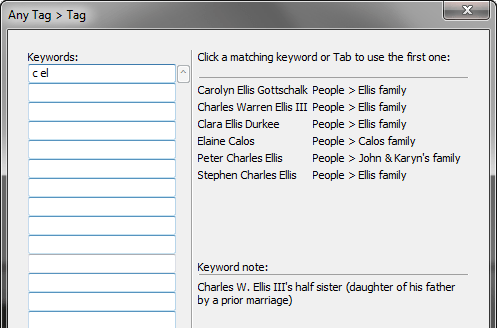
For example, to tag a photo with the keyword “Carolyn Ellis Gottschalk”, you might type “c el <tab> or “ellis c <tab>” or even “c <tab>” (if you had recently used “Carolyn Ellis Gottschalk”).
Any Tag can also “commit” the country, state/province, and city fields that Lightroom automatically adds to photos when they have GPS coordinates. Any Tag turns those suggestions (gray font) into permanent values (white font), making them easier to edit and saving them in your photo’s metadata.
Try it for free for 30 days. Buy a license at a price you name.
Download and Install
Any Tag requires Lightroom 3 or higher, Lightroom CC 2015, or Lightroom Classic. (The newer cloud-focused Lightroom doesn’t support plugins.)
- Download anytag.1.22.zip. (What’s changed in this version)
- If you’re upgrading from a previous version of Any Tag, exit Lightroom, delete the existing anytag.lrplugin folder, and replace it with the new one extracted from the downloaded .zip. Restart Lightroom and you’re done.
- If this is a new installation, extract the folder anytag.lrplugin from the downloaded .zip and move it to a location of your choice.
- In Lightroom, do File > Plug-in Manager.
- Click Add, browse and select the anytag.lrplugin folder, and click Select Folder (Windows) or Add Plug-in (Mac OS).
The free trial is for 30 days – after that, you’ll need to buy a license.
Buy a License
- Buy a license at a price you think is fair:
The license includes unlimited upgrades. Make sure you’re satisfied with the free trial before buying. It isn’t necessary to buy a license to use the Commit Locations and Find Uncommitted Locations commands. - Copy the license key from the confirmation page or confirmation email.
- Do File > Plug-in Extras > Any Tag > Tag.
- Click Buy.
- Paste the key into the License key box and click OK.
Using Any Tag
Loading Keywords
The first time you invoke Any Tag, it will load the keywords from the catalog. Due to Lightroom limitations, this could take many minutes for very large keyword lists (especially on Windows), but the next time you invoke the plugin, it will start very quickly. If the initial load takes more than a few seconds, Any Tag will ask if you want to use a faster, manual method for initially loading the keywords, using the Metadata > Export Keywords command – Any Tag will walk you through the steps. (And if you encounter problems using the manual method, see this support note.)
Any Tag continually, unobtrusively reloads the keywords in background. But if you change or delete keywords outside of Any Tag, you’ll need to do Reload keywords if you want Any Tag to see the changes immediately.
Entering Keywords
With Any Tag, you can select keywords and synonyms with just a few keystrokes, seeing all matching keywords, their ancestors, and their notes as you type. Hit Tab to select the first matching keyword, or click on any matching keyword to select that keyword.
As you type a word, say “jo”, Any Tag will show all keywords containing a word starting with “jo”. For example, “jo” would match “John Rolfe Ellis” and “Bob Jones” but not “Mojo Motors”. If you type multiple words, then the matching keywords will match each of your words. For example, “jo el” would match “John Rolfe Ellis” and “Elsworth Johnson” but not “Joe Seldon”.
If no keywords match, your words will be shown in red.
Any Tag shows the most recently used matching keywords first. So as you tag a batch of photos, it’s usually sufficient to type just the first one or two letters to call up the desired keyword.
If the matching keywords or their ancestors are getting truncated, you can resize the Any Tag window to see more.
Tag
With the Tag command, you can quickly apply existing and new keywords to photos, without accidentally creating keywords when you mistype.
- While in Grid or Loupe view, select one or more photos.
- Do File > Plug-in Extras > Any Tag > Tag.
- Enter one or more keywords.
- Click < or > to move to the previous or next photo (if you selected one photo), or click OK. If you entered words that don’t match any keyword, Any Tag will prompt you to create a new keyword, entering its parents, synonyms, and a descriptive note. Click Cancel if you don’t want to create the keyword.
Filter By Keyword
With the Filter By Keyword command, you can quickly filter your photos by one or more keywords, without laboriously scrolling in the Filter Bar. Unlike Lightroom’s text search or smart collections, the photos’ keywords always match exactly, regardless if they contain spaces.
- Do File > Plug-in Extras > Any Tag > Filter By Keyword (keyboard shortcut ALT+L U K on Windows).
- Enter one or more keywords.
- Match all of the keywords will show photos containing all of the keywords. Match any of the keywords will show photos containing at least one of the keywords.
- Clear current filter will clear the Filter Bar of all previous criteria. Add new keyword columns will add new keyword columns to the Filter Bar, rather than reusing any existing keyword columns; this lets you construct filters such as (“John” or “Joe”) and (“Mary” or “Jane”).
Notes
With the Notes command, you can attach descriptive notes to keywords. For example, you might provide more information about the people, places, or events the keywords represent.
The notes are kept in a comma-separated-values (CSV) text file in your catalog folder, any tag notes.csv. Many, many programs can read such files (such as Microsoft Word and Excel), so you don’t need to worry about your notes getting locked into a proprietary plugin or catalog database.
- Do File > Plug-in Extras > Any Tag > Notes.
- Enter a keyword. Any existing note for the keyword will be displayed below.
- Edit the note, typing Ctrl+J (Windows) or Ctrl+Return (Mac OS) to enter a line break in your note (silly Lightroom infelicity).
- Repeat steps 2 and 3 for additional keywords, then click OK.
Use the Import button to import notes from another CSV file or from a .xml file exported from Photoshop Elements via its Save Keyword Tags To File command.
If you rename a keyword or change its location in the hierarchy, Any Tag will keep its note attached to it. But if you delete a keyword (or in very rare cases, rename a keyword), Any Tag will warn you that its note is “orphaned” and export all such orphaned notes to a separate file. You can edit the orphan file and reimport it with the Import button.
Batch (Bulk) Editing Many Keywords
The Export and Import Keywords commands are like the built-in commands but allow you to batch (bulk) edit existing keywords without losing the assignments of keywords to photos. Examples:
- Change the Include on Export attribute of all or some of the keywords
- Run a spellchecker on the keywords
- Introduce hierarchical keywords to a very large flat list without tripping over the Windows too-many-keywords bug
- Change the capitalization of keywords
Steps:
- Do File > Plug-in Extras > Any Tag > Export Keywords, which exports the keyword hierarchy as a CSV (comma-separated values) file.
- Edit the .csv file in an external program, preferably one like Excel or Google Sheets that can display the file in tabular form. Save your changes back to the .csv file (not in .xlsx format).
- Do File > Plug-in Extras > Any Tag > Import Keywords to import changes from the edited .csv file. If you change one of the attributes Export Containing Keywords, Export Synonyms, or Person, you’ll be directed to restart Lightroom. Don’t worry if you see some keywords in the Keyword List getting temporarily renamed to unique ids—they’ll get moved and renamed to their final destination before Import Keywords exits.
When edited in Excel or Google Sheets, the format of the .csv file is perspicuous:

You can freely edit the attribute columns (Y or N) and the keyword names. But don’t change the Id column or the catalog file path in the second row—they tie individual keywords back to the keywords in the catalog. If you import an edited file into another catalog, renames and moves in the hierarchy will be treated as deletions and adds of new keywords, and you’ll lose any assignments of the deleted keywords to photos. (Any Tag will warn you about this.)
To rearrange the hierarchy, cut and paste rows into the desired location and then shift the keyword names left or right to the appropriate level. Be sure to include the rows containing synonyms. To shift keyword names left or right, select one or more cells, right-click, and do Insert/Delete in Excel or Insert Cells/Delete Cells in Google Sheets. Don’t worry about updating the Level column or the last column showing a keyword’s full path (e.g. John < Family)—Import Keywords ignores them. As you shift keyword names left or right, all that matters is that a child keyword is at least one column to the right of the parent keyword (it could be more than one column).
To add a keyword, insert a row underneath the parent keyword. Leave Id blank, set all the attributes to Y or N, set Synonym to N, leave Level blank, and place the keyword’s name one column to the right of the parent’s name. To add a synonym, leave Id and the attributes blank, set Synonym to Y, and place the synonym’s name one column to the right of the keyword’s name.
To delete keywords, simply delete their rows from the file. Any Tag won’t actually delete those keywords from the catalog—instead, they’ll be moved under the special top-level keyword _Any Tag To Delete, from which you can then delete the keywords from the catalog.
You can add notes by using cells to the right of the keyword names and synonym paths—they will be ignored by Import Keywords.
A tip for power users: Data filtering can make it very easy to change subsets of the keywords very quickly (Data > Filter in Excel or Data > Create a Filter in Google Sheets). For example, to turn off Include on Export for all top-level keywords, filter the Level column to show just level-1 rows. Then drag-and-copy “N” down the Include on Export column of the displayed rows.
If you’re making hundreds or thousands of changes to your keyword list, I recommend doing it in smaller chunks of perhaps a hundred keywords at a time or less. It’s easier to verify your changes, and Lightroom can really slow down when a plugin makes larger numbers of changes.
Committing Locations (free)
When a photo has GPS coordinates, Lightroom automatically fills in the location fields Country, Country Code, State/Province, City, and Sublocation with suggested values (reverse geocoding). These suggested values appear in gray font and are difficult to edit—you must first “commit” the fields by clicking on their labels in the Library Metadata panel, one field at a time, one photo a time. Though the suggested values appear in exported photos, they don’t get written to the photo’s metadata, and they’re not visible to many parts of LR, including plugins (see this bug report).
Many users have complained about this poor design. The best solution is to use the Geoencoding Support plugin or the Geosetter program. But if you want to stick with Lightroom’s geocoding, Any Tag can make your life easier.
The Find Uncommitted Locations command finds photos that have uncommitted location fields. Select one or more photos and do File > Plug-in Extras > Any Tag > Find Uncommitted Locations. The photos with uncommitted fields will appear in the top-level collection Uncommitted Locations.
The Commit Locations command turns the suggested location values into permanent values that can be edited and saved to metadata. Select one or more photos and do File > Plug-in Extras > Any Tag > Commit Locations. Note that Commit Locations ignores videos—Lightroom doesn’t have the ability to write metadata back to videos.
If you have Saved Locations in the Map module marked as “private”, or if you have the option Catalog Settings > Metadata > Export Address Suggestions Whenever Address Fields Are Empty unchecked, then Commit Locations won’t be able to commit the locations, and it will warn you. Change the appropriate saved locations to be non-private or select the catalog option.
The Commit Locations command is not speedy, processing about 6 photos per second on a newer computer. Lightroom doesn’t provide plugins with a method for accessing uncommitted field values directly, so Any Tag must export the photos to tiny thumbnails and then extract the values from them.
These commands are free to use and don’t require a license after the 30-day trial ends.
Keyboard Shortcuts
Use Any Menu to invoke any plugin menu item with just a few keystrokes and assign single-letter quick keys to the most-used menu items. Alternatively:
Windows: You can use the standard menu keystrokes to invoke Any Tag commands. For example, ALT+L opens the Library menu, U opens the Plug-in Extras submenu, and K invokes the Any Tag Filter By Keyword com command. In addition, ALT-N and ALT-P move to the next and previous photos in the Tag command.
To reassign a different final keystroke to an Any Tag menu item, edit the file Info.lua in the plugin folder. Move the “&” in front of the desired letter in the menu command’s name, changing the name itself if necessary.
To assign a single keystroke as the shortcut, download and install the free, widely used AutoHotkey.
Mac OS: In System Settings > Keyboard > Keyboard Shortcuts > App Shortcuts, click + to add a new shortcut. In the Application menu, tediously scroll to the bottom and select Other… Navigate to Applications > Adobe Lightroom Classic and select Adobe Lightroom Classic.app. In Menu title type three spaces followed by the name of the menu command, e.g. “Tag” (case matters and don’t enter the quotes). In Keyboard shortcut type the desired key or key combination.
Support
Please send problems, bugs, suggestions, and feedback to ellis-lightroom@johnrellis.com.
I’ll gladly provide free licenses in exchange for reports of new, reproducible bugs.
Known limitations and problems:
- In Lightroom 13.5 and later, Commit Locations can crash Lightroom on Intel Macs. Adobe has acknowledged this Lightroom bug.
- Any Tag requires Lightroom 3 or higher, Lightroom CC 2015, or Lightroom Classic—it requires key plugin capabilities not available in earlier versions.
- The Tag window may start increasing in size vertically, with extra space at the bottom. This is caused by a Lightroom bug on high-resolution Windows displays with scaling greater than 100%. Just drag the bottom edge to resize the window to the desired size.
- If you have more than a few thousand keywords, the initial loading and subsequent loading via Reload keywords can be slow due to limitations of Lightroom. In Lightroom 4 and later, keywords load at about 600 keywords per second (it’s much slower in LR 3). If you create new keywords using the Tag command, you’ll rarely need to wait for for Any Tag to reload keywords.
- One user has reported the following: You have a very large number of keywords, you select the manual loading method when Any Tag first starts, and when you restart Any Tag you’re not prompted to browse to the keywords text file. As a workaround, exit and restart Lightroom, then restart Any Tag—you should then be prompted to browse to the keywords text file. If this situation happens to you, please let me know.
Version History
1.0
- Initial release.
1.1
- Fixed several small bugs.
1.2
- Worked around bug in Lightrom 4.0 SDK where Lightroom’s internal logging was being captured in Any Tag’s debug.log, causing Lightroom to run very slowly.
1.3
- Unicode characters in filenames now work.
1.4
- Commands now appear in File > Plug-in Extras as well as Library > Plug-in Extras.
- On Windows, Alt-N and Alt-P move to next and previous photo in the Tag command.
1.5
- Worked around Lightroom bug with Filter By Keyword and Match any.
1.6
- Handles non-Roman alphabets such as Cyrllic.
1.7
- Commands for finding and committing reverse-geocoded locations.
1.8
- Fat-fingered update, corrected in 1.9.
1.9
- Commit Locations issues warning if Lightroom settings prevents it from working properly.
- Commit Locations correctly handles paths containing non-Latin-1 characters.
- Updated to most recent ExifTool (10.61).
1.10
- Handles the new Edits filter setting in Lightroom 7.2 without raising an error.
- Suppresses the harmless error, “Attempt to make a request on a closed server”, that occurred on Windows when Lightroom exited, making a backup. The error was caused by a bug in Windows Lightroom.
1.11
- Worked around obscure problem in Lightroom 7.3.
1.12
- Removed spurious warning from Filter by Keyword in Lightroom 9.
- Tweaked visual appearance of scroll bar in Tag on Mac.
- Included most recent version of ExifTool.
1.13 2022-06-08
- The Tag window can be resized vertically as well as horizontally, to work around a Lightroom bug that continually increases the vertical size of the window on high-resolution Windows displays with scaling larger than 100%.
- Updated to latest version of ExifTool.
1.14 2023-08-12
- Uncommitted Locations displays the paths of photos when Lightroom chokes on exporting them.
1.15 2023-12-07
- Export and Import Keywords commands for batch (bulk) editing of keywords.
- Updated to ExifTool 12.70.
- Minimum required version of Lightroom is now 5.0.
1.16 2024-01-05
- Fixed bug when the plugin is installed in a folder path containing a space.
- Export Keywords uses the file and folder you specify for the .csv file, rather than always saving to
Any Tag Keywords.csvon the Desktop.
1.17 2024-11-24
- Export and Import Keywords now ignore synonyms that, due to a Lightroom bug, have been left “orphaned” in the catalog and normally invisible. The orphans will be logged in debug.log.
- Commit Locations can now be cancelled via the progress bar.
- Commit Locations no longer stops after encountering an error with a file. When it completes, it displays a window showing the details on all the errors.
1.18 2024-12-22
- Filter by Keyword no longer provides a spurious warning about unable to change the Library filter.
- Added the column # Photos to the CSV file created by Export Keywords, showing the number of photos to which each keyword is directly assigned.
- Removed the workaround for changing the case of a keyword with Import Keywords—Adobe fixed the bug.
1.19 2025-01-17
- Fixed bug with keyword synonyms in CSVs created by Export Keywords.
1.20 2025-09-07
- Fixed bug in Import Keywords when Delete keywords that are not referenced in the imported file is unchecked.
- Fixed bug in Import Keywords when keyword A1 is moved to B > A2 and A2 is moved to B > A3, working around the lack of error detection in the Lightroom SDK.
- Progress scope for Import Keywords now shows what it’s doing.
1.21 2025-10-31
- Updated By Keyword to not issue spurious Lightroom 15 warning about failing to change the Library filter.
- Updated to ExifTool 13.35.
1.22 2026-08-31
- Compatibility with Mac OS 27 (the sqlite3 utility is now a universal binary).
- The file any tag notes.csv, which stores notes added to keywords, is now written with a byte-order mark (BOM) to make it easier to open in Excel correctly.
- Updated to ExifTool 13.59.